Configuration
Server configuration
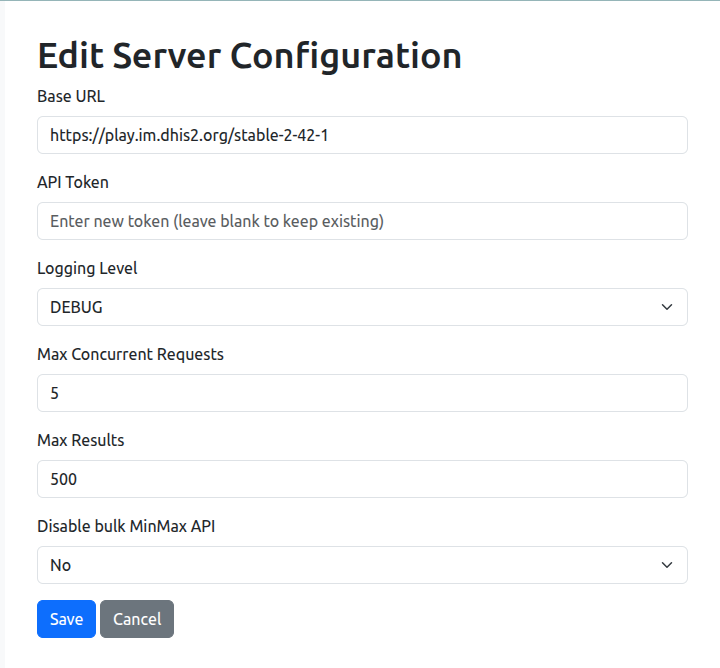
The server configuration is specified in a YAML file. A sample configuration file is provided in the config directory of the repository. You should copy this file to a directory of your choice and modify it as needed. Here is an example of the server configuration:
server:
# replace with your DHIS2 instance URL/No trailing slash
  base_url: https://play.im.dhis2.org/stable-2-42-1
  d2_token: YOUR_API_TOKEN
  logging_level: INFO            # DEBUG | INFO | WARNING | ERROR
  max_concurrent_requests: 10    # limits simultaneous API calls
  max_results: 1000              # caps results per request (500–50000)
  # root_org_unit: ImspTQPwCqd   # required only if your instance has multiple top-level org units
Maximum concurrent requests
The max_concurrent_requests setting controls the number of simultaneous API calls that the DQ Workbench will make to the DHIS2 instance. Increasing this value can speed up processing, but it may also lead to rate limiting or timeouts if the DHIS2 server cannot handle the load. A value between 5 and 10 is generally recommended, but you should adjust this based on your server’s capabilities and performance.
Maximum results per request
The max_results setting determines the maximum number of data quality results which can be returned from the API. In recent versions of DHIS2, you can adjust this value between 500 and 50000. In general, if you are using the DQ Workbench to monitor a large number of validation rules or outliers, you will need to increase this value to ensure that all results are returned. However, setting this value too high may lead to performance issues or timeouts, so it is recommended to start with a lower value and increase it as needed. Some experimentation may be required to find the optimal value for your specific use case and server configuration. Values of 5000 or 10,000 are often a good starting point.
In order to change the server configuration, you can make a POST request to the /api/systemSettings endpoint with the following JSON payload:
{
  "maxDataQualityResults": 10000
}
Multiple root organisation units
Most DHIS2 instances have a single top-level organisation unit. In that case the integrity stage detects it automatically and no extra configuration is needed.
Some instances are configured with multiple top-level organisation units. In that case the
integrity stage cannot determine where to store results and will raise an error at runtime.
Set root_org_unit in the server config to the UID of the organisation unit that should
be used as the target:
server:
  root_org_unit: ImspTQPwCqd
This setting is only used by integrity check stages. All other stage types are unaffected.
Using environment variables for secrets
Storing the API token directly in the YAML file is convenient for development but
not recommended for production. Any value inside the server section can
instead reference an environment variable using the ${VAR_NAME} syntax:
server:
  base_url: https://play.im.dhis2.org/stable-2-42-1
  d2_token: ${DHIS2_API_TOKEN}
The value is resolved when the config is loaded. If the referenced variable is not set, startup will fail with a clear error message. Set the variable in your shell, service unit, or secrets manager before launching the app:
export DHIS2_API_TOKEN=d2p_yourtoken
gunicorn "app.web.app:create_app('config/my_config.yml')" --bind 0.0.0.0:5000
Creating a dedicated user account
- Ideally, you should use a dedicated user account with an API token for authentication which has a limited set of permissions. These permissions include:
Add data element groups
Add data elements
Export metadata
Import metadata
Add/update min-max data values
Add/update data values
Run validation
Perform maintenance tasks
Keep in mind that if any of your data sets are restricted by user groups, you will need to ensure that the user account you are using for the DQ Workbench tool is a member of those user groups so that it has access to read data from those data sets. The user should also be assigned to the root organisation unit to ensure full access to all data across the organisation unit hierarchy.
Once you have created the user account, login with that account and generate an API token. This token will be used for authentication when the DQ Workbench tool interacts with the DHIS2 instance. You will need to grant the copy at least “GET” and “POST” permissions. You should carefully consider the expiry date for the token. It is best security practice to set an expiry date and renew the token before it expires. However, if you set an expiry date, you will need to remember to update the configuration file with the new token before the old one expires to avoid disruptions in service.
You can generate an API token by navigating to the user profile page in DHIS2 and selecting the “Generate new token” option. Be sure to keep your browser tab open until you have copied the token, as you will not be able to retrieve it again later. Once you have copied the token, paste it into the d2_token field in your configuration file or enter it in the web UI configuration page.
Sample configuration file (UI view)